


Shopping Cart (0)
Close
Import products using CSV to add multiple items to your DokanApni store quickly without creating every product listing separately. The CSV import tool allows registered sellers to upload product names, descriptions, prices, SKUs, stock information, categories, images and other product details in bulk.
This step-by-step guide explains how to sign in to your seller account, open the import tool, upload your CSV file, map its columns and complete the product import.
Creating products individually is suitable when you only have a few items. However, sellers with a large product catalogue can save considerable time by using the CSV import option.
The bulk import tool can help you:
Before beginning the DokanApni CSV product import, prepare your product information and save the file in CSV format. Each row should normally represent one product, while the columns contain its individual details.
Your CSV file may include fields such as:
Use a unique SKU for every product. Product images should use complete, publicly accessible URLs if you are importing them through the CSV file. You can also use the sample file available on the import page to understand the supported format.
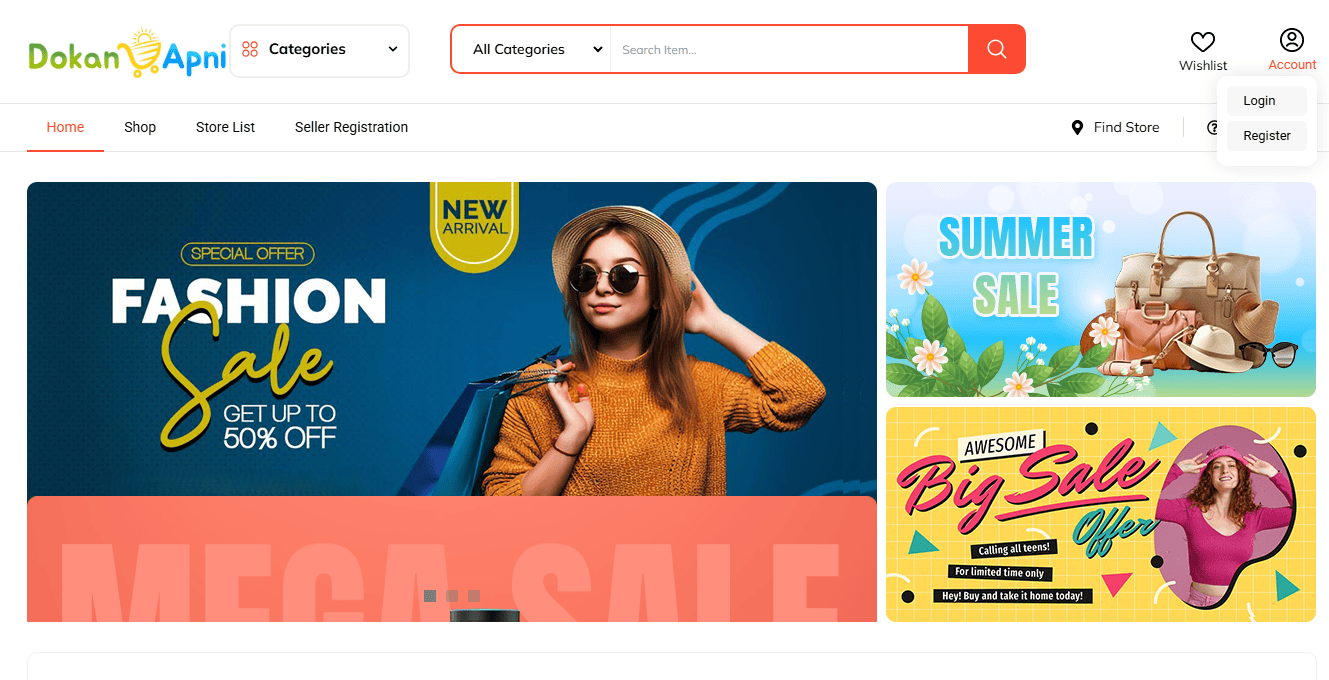
Visit DokanApni.com and click the Account icon at the top-right corner. Select Login and enter your registered seller username or email address and password.
Make sure you sign in with your seller account. A regular buyer account without selling access will not display all seller dashboard options.
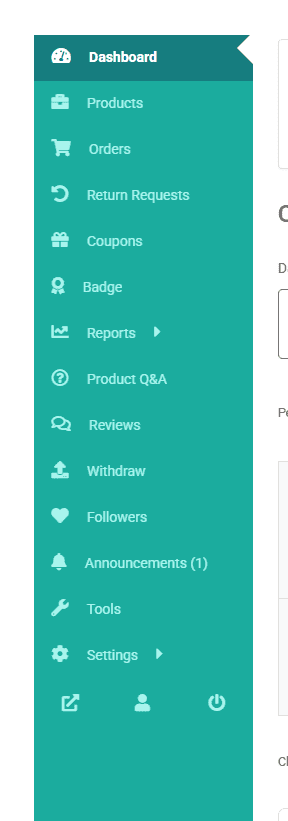
After successfully signing in, open your DokanApni seller dashboard. The dashboard menu appears on the left side of the screen and provides access to products, orders, reports, withdrawals, settings and seller tools.
Scroll down through the left-hand dashboard menu and click Tools. This section contains the options that allow sellers to import or export product information.
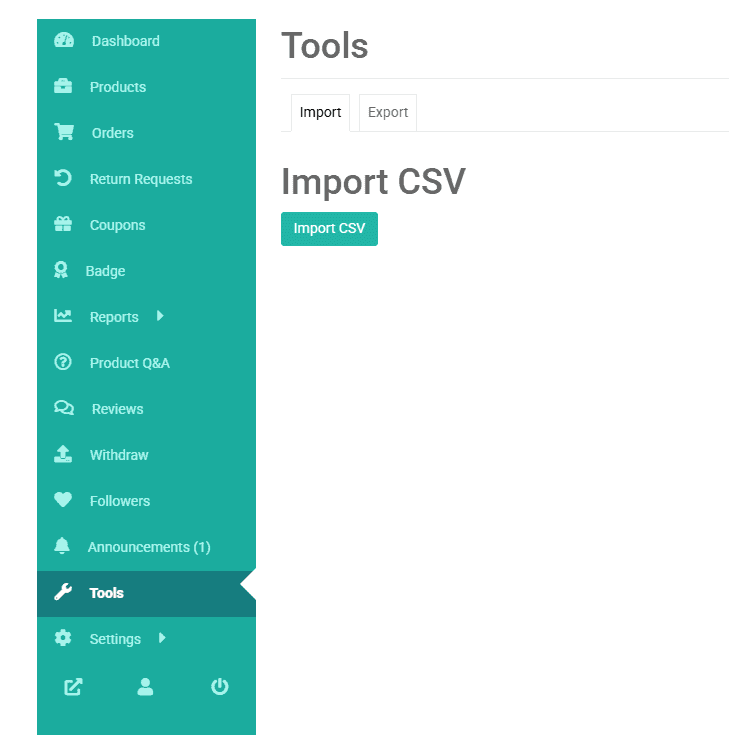
The Tools page contains separate Import and Export tabs. Open the Import tab and click the green Import CSV button.
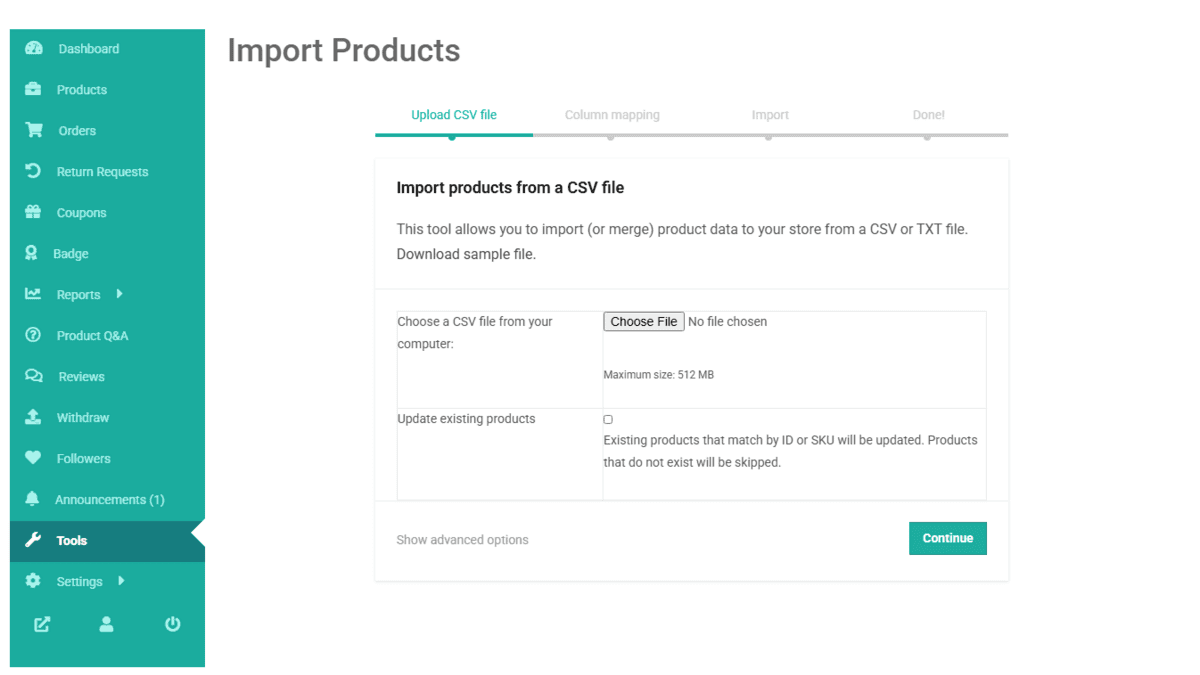
On the Import Products screen, click Choose File. Find and select the prepared CSV file from your computer.
The page also provides a sample CSV file. Downloading this sample can be helpful if you are unsure about the required headings or product-data format.
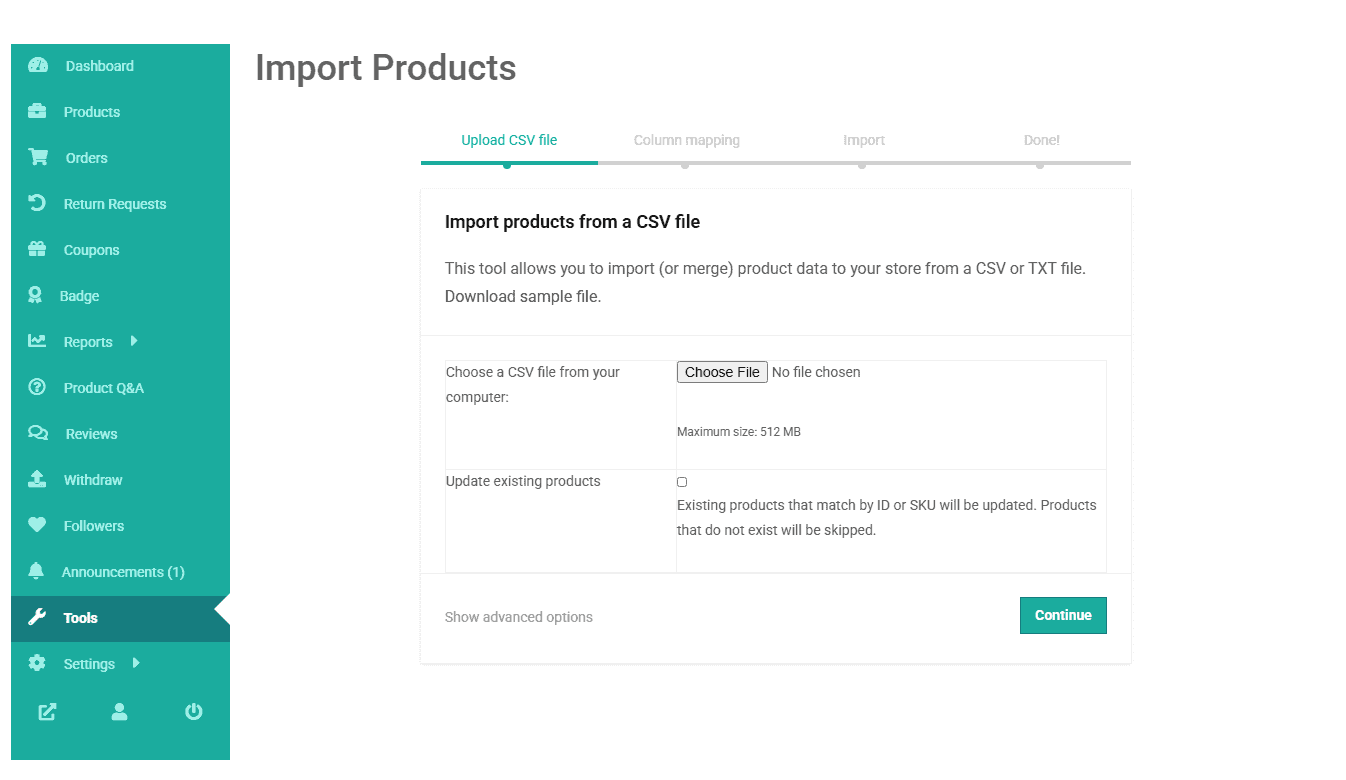
The importer includes an option labelled Update existing products. Leave this box unchecked when you want to create new products.
Only select this option when you intentionally want to update products already present in your store. Existing products are matched using their product ID or SKU. When this option is selected, products that do not already exist may be skipped.
After selecting the correct CSV file and reviewing the update option, click Continue. The importer will read the file and take you to the column-mapping stage.
You can also review the official WooCommerce product CSV documentation for more information about supported product fields.
Column mapping connects every heading in your CSV file with the appropriate DokanApni product field. The system may recognise common column headings automatically, but you should review every mapping before proceeding.
For example:
If a CSV column is not required, select the option that prevents that column from being imported. Incorrect column mapping can place information in the wrong product field.
After checking all column mappings, run the importer. Keep the browser window open while the products are being processed. The time required will depend on the number of products, the amount of information and whether images must be downloaded from external URLs.
When the import is complete, return to Seller Dashboard → Products and examine the imported listings. Check each important field, including:
Imported products may still require marketplace review before publication. Make sure every listing follows the DokanApni Prohibited Products Policy and contains complete, accurate information.
Confirm that the file is a valid CSV, contains product names and uses recognisable column headings. Also check whether Update existing products was selected accidentally, as new products may be skipped in update mode.
Ensure every image URL is complete, publicly accessible and links directly to an image file. A URL requiring a login or special permission cannot normally be downloaded by the importer.
This usually indicates incorrect column mapping. Review the file headings and map every column to the correct product field before starting another import.
Use consistent, unique SKUs. If you need to revise products already imported, use the update option with the same SKUs instead of importing them as completely new products.
The CSV importer provides an efficient way to add or update a large product catalogue. Once you understand how to prepare the file, upload it and map the columns, you can import products using CSV instead of entering every listing manually.
If you do not yet have a seller account, visit the DokanApni seller registration page. You can also read our seller registration guide for help setting up your store.
Yes. Sellers can upload a properly prepared CSV file to add multiple products through the DokanApni seller dashboard.
Select it only when you want to update existing listings that match the product IDs or SKUs in your CSV. Leave it unchecked when importing new products.
Yes, provided the CSV contains complete and publicly accessible image URLs that the importer can download.
Open Seller Dashboard → Products and review the imported listings, images, prices, inventory, categories and dimensions.
Imported products may require review and approval before becoming publicly visible on the DokanApni marketplace.

